In this piece
In my reel, a cursor moves by itself. It logs in, types the code from a text message, downloads an invoice, and stops to ask before it changes a payment.
If you commented “browser” on the reel, this is the link. One honest note first: the screen in the reel is a demo I made for the video. Ashgrove Supply is a made-up portal, and the agent’s steps in it were scripted.
Everything below is real: real tools, real commands, and the same task, so you can run it on your own portals.
What browser use is
Browser use means an AI driving a web browser. It looks at the page, decides what to click, clicks, types, and checks what happened. The same things you do, minus you.
Why should a business care? Almost every business has at least one old portal with no automation. A supplier’s billing site. A government site. A dashboard from 2012 with no API. Every week someone logs in, clicks the same ten things and downloads the same report. Browser use can do that job, because it uses the site the way you do.
What an agent browser is
A normal browser is built for a person with eyes and a mouse. An agent browser is a browser built for an AI to drive.
The big difference is how the AI sees the page. Instead of working out where a button is from a picture of the screen, it gets the page as a short list, with a label on everything it can click or type into:
- textbox "6-digit code" [ref=e2]
- button "Verify" [ref=e3]
So the AI can say “type the code into e2, then click e3”. Nothing to guess. The one I’d use is Vercel’s agent-browser.
Browser use is the job. An agent browser is a tool made for that job.
Which one to use
- Codex’s browser, if you want to type a task into a chat and watch it happen. No terminal. It can also work in your own Chrome, where you’re already logged in.
- agent-browser, if you already use an AI that runs commands, like Claude Code or the Codex CLI, or you want the same task to run every week from a script. It runs in the background, keeps your passwords in an encrypted vault the AI never sees, and works on Mac, Windows and Linux.
Simple rule: one-off jobs in Codex, jobs you repeat with agent-browser.
Set up Codex’s browser
Codex’s browser lives in the ChatGPT desktop app. It isn’t in the Codex CLI or the IDE extension.
- Install the ChatGPT desktop app from chatgpt.com/download (Mac or Windows) and sign in.
- Start a Codex chat. Pick Codex, then New chat.
- Use the built-in browser by typing
@Browserin your message. There’s nothing to install. It keeps its own logins, separate from your normal browser, so the first time you sign in to the site yourself, inside it. - Or use your own Chrome, where you’re already logged in. Open Settings > Computer Use, pick Chrome and select Install to add the ChatGPT extension. When Chrome shows Manage, it’s connected. Then type
@Chromein a Codex chat. Edge, Brave, Opera and Vivaldi work the same way. - Allow the site. The first time it opens a website, it asks. Pick Allow for this site, not Allow for all sites.
These features are still rolling out by plan and region. If you don’t see them yet, agent-browser works anywhere. OpenAI’s full docs are here.
Set up agent-browser
agent-browser is free and open source. You need Node.js on your computer.
1. Install it
npm install -g agent-browser
agent-browser install
The second line downloads a copy of Chrome just for it. You only do this once. On a Mac, brew install agent-browser works too.
2. Tell your AI about it
In Claude Code or Codex, add these two lines to your CLAUDE.md or AGENTS.md:
Use `agent-browser` for browser automation. Before the first use, run
`agent-browser skills get core` and follow it.
Or install its skill with npx skills add vercel-labs/agent-browser. Either way, your AI learns the commands from the tool itself, so they always match the version you have.
One thing for the Codex CLI: its commands run without internet by default, so Codex will ask before it lets agent-browser run outside its sandbox. Say yes, or turn network access on in its settings.
3. Try it yourself once
agent-browser open example.com
agent-browser snapshot -i
agent-browser click @e1
agent-browser close
snapshot -i prints everything you can click or type into, each with a label like @e1. That’s the list your AI reads. It runs without a window. To watch it work, add --headed, like agent-browser --headed open example.com. The full docs are at agent-browser.dev.
The task from the reel, for real
Here’s the same job as the reel, on a real portal: log in, enter the code the site texts you, download an invoice, then change its payment date, but only after you say yes. Swap example.com for your portal’s address.
1. Save the login once
Run this in your own terminal, not in the chat with the AI. When it waits, type your password and press Enter. Nothing shows on screen. That’s on purpose.
read -s PW
printf '%s' "$PW" |
  agent-browser auth save billing \
  --url https://example.com/login \
  --username you@company.com \
  --password-stdin
unset PW
Your password now sits in agent-browser’s encrypted vault on your computer. The AI only ever sees the name billing.
2. Write the rules
Add these under the two lines from the setup, in the same file:
- Log in to the billing portal with `agent-browser auth login billing`. Never ask me for a password.
- If a site asks for a one-time code, stop and ask me for it.
- Before any step that pays, sends, deletes, or changes a payment or bank detail, stop. Tell me exactly what you will change, then wait for my yes.
- If agent-browser says "Confirmation required", tell me what it wants to do. Run `agent-browser confirm` only after I say yes.
3. Give it the task
In Claude Code or Codex, type:
Log in to our billing portal with agent-browser. Find the unpaid invoices, download INV-2047, and move its payment date to 28 Nov. Ask me before you save the date.4. What happens
It logs in from the vault and lands on the code page. There it stops and asks you for the code. You read it off your phone and type it into the chat. Then it carries on. Each step is one short command, like these:
agent-browser auth login billing
agent-browser snapshot -i
agent-browser fill @e2 "482913"
agent-browser click @e3
agent-browser find text "INV-2047" click
agent-browser snapshot -i
agent-browser download @e7 INV-2047.pdf
agent-browser fill @e8 "11/28/2026"
Then it stops again, before the click that saves. It tells you what it’s about to change: the invoice, the old date and the new one. Only after your yes does it run the last click. The labels like @e7 will be different on your portal. The AI reads them fresh from each snapshot.
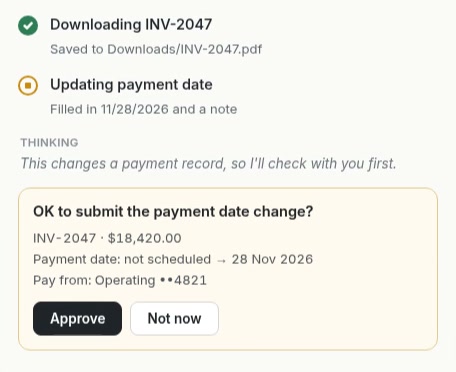
The demo from the reel. Ashgrove Supply is a made-up portal I built for the video, and the agent’s steps are scripted. This is the ask-first moment: the change is filled in, and nothing is saved until you say yes.
The same task in Codex’s browser
In a Codex chat in the ChatGPT desktop app, type:
@Chrome Open our billing portal at example.com. Find the unpaid invoices, download INV-2047, and move its payment date to 28 Nov. If the site asks for a code, ask me for it. Ask me before you save the date.
If you’re already logged in to the portal in Chrome, it skips the login. With @Browser instead, sign in to the portal yourself in its built-in browser first.
Make it ask before anything risky
This is the part that matters most. Here’s how each tool handles it.
The rule in your instructions does the real work. Name the actions: pay, send, delete, change a payment or bank detail. Ask it to tell you exactly what it’s about to change.
A vague rule like “be careful” doesn’t help. The AI doesn’t know what you think is risky until you tell it.
Codex also asks on its own before sensitive steps, like submitting information, making a purchase, changing permissions or deleting data. In Settings > Browser > Agent permissions you can choose whether it may browse, download and upload, and set exceptions for single websites. I’d still write the rule, so you’re not relying on its guess of what counts as risky.
agent-browser has a lock for whole kinds of actions. Start it with --confirm-actions and those actions stop until someone approves them:
agent-browser --confirm-actions upload \
  open https://example.com
Now any upload stops with “Confirmation required” and a code. It only goes ahead after agent-browser confirm with that code, and if nobody answers within 60 seconds, it cancels. With the last rule above, your AI asks you before it confirms.
The lock works on kinds of actions, like every upload, every download or every click. It can’t single out one button. So for “don’t save the payment date without me”, the rule is what stops it.
Start small
- Start with a job that only reads. Download a statement, check an order status, copy numbers into a sheet. Let it change things only after it has done the reading part right a few times.
- Watch the first few runs. In Codex, keep the browser beside the chat. With agent-browser, add
--headed. - Never paste a password into the chat. Use agent-browser’s vault, or sign in yourself in Codex’s browser.
- Don’t trust what’s on the page. A website can hide text meant to trick an AI. Keep the ask-first rule on, and only allow the sites the job needs.
Pick the one portal you log in to every week. That’s your first job for it.